HomeBetaHardwareSupport

CoachCall How-To

Set up the app without guessing.

How-to and troubleshooting for coaches, players, staff, watches, live audio, and analytics. Video walkthroughs coming soon.

Free setupPro setupTroubleshooting

Free Setup

Keep it simple: pitcher setup and live calls

Free is the simple version of CoachCall. Set up the coach, team, pitchers, and pitches, then make calls from the call screen.

  1. 1

    Set coach and team names

    Free setup starts with your coach name and team name. This keeps the call screen clear and easy to recognize.

  2. 2

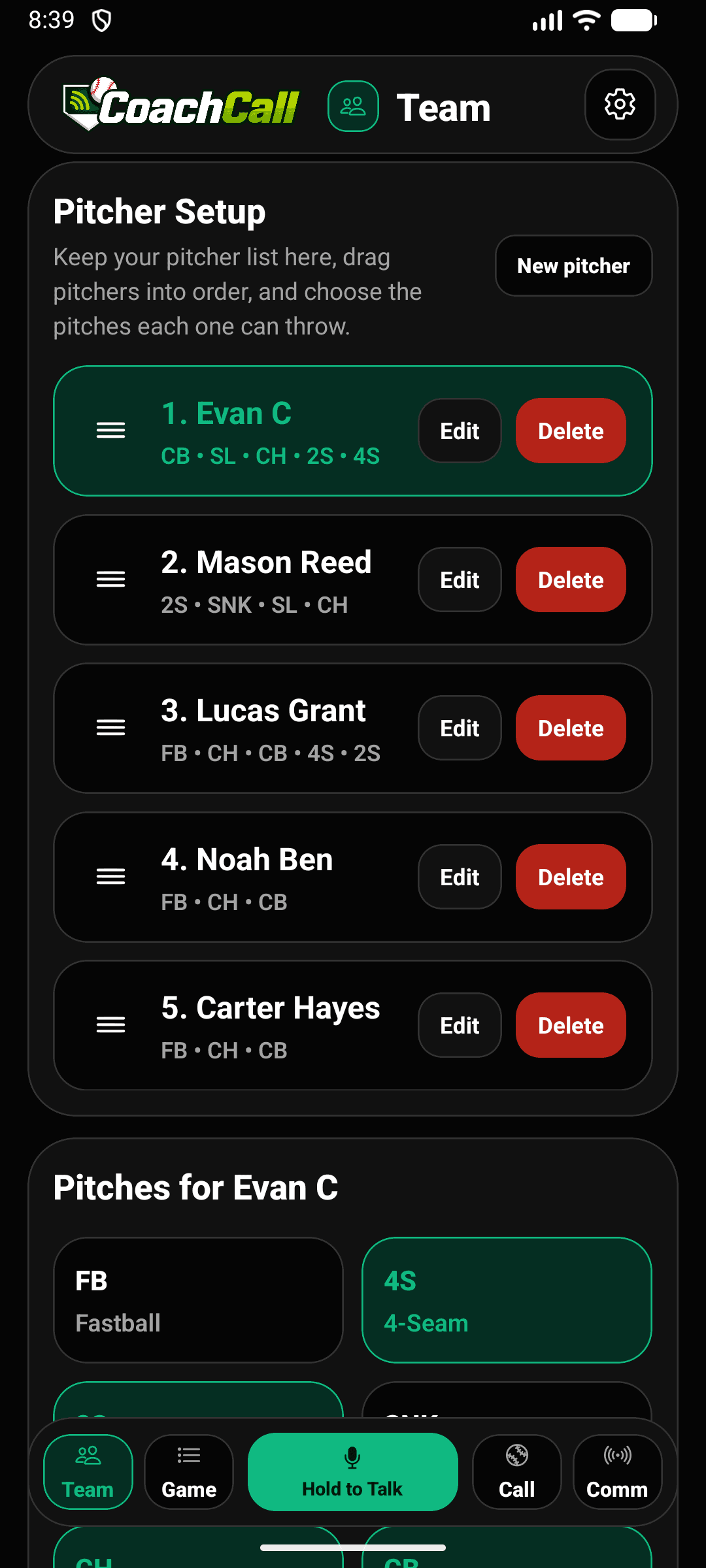
    Add pitchers and pitches

    Name your pitchers and set up the pitches each one throws. That gives you the pitches you need on the call screen.

  3. 3

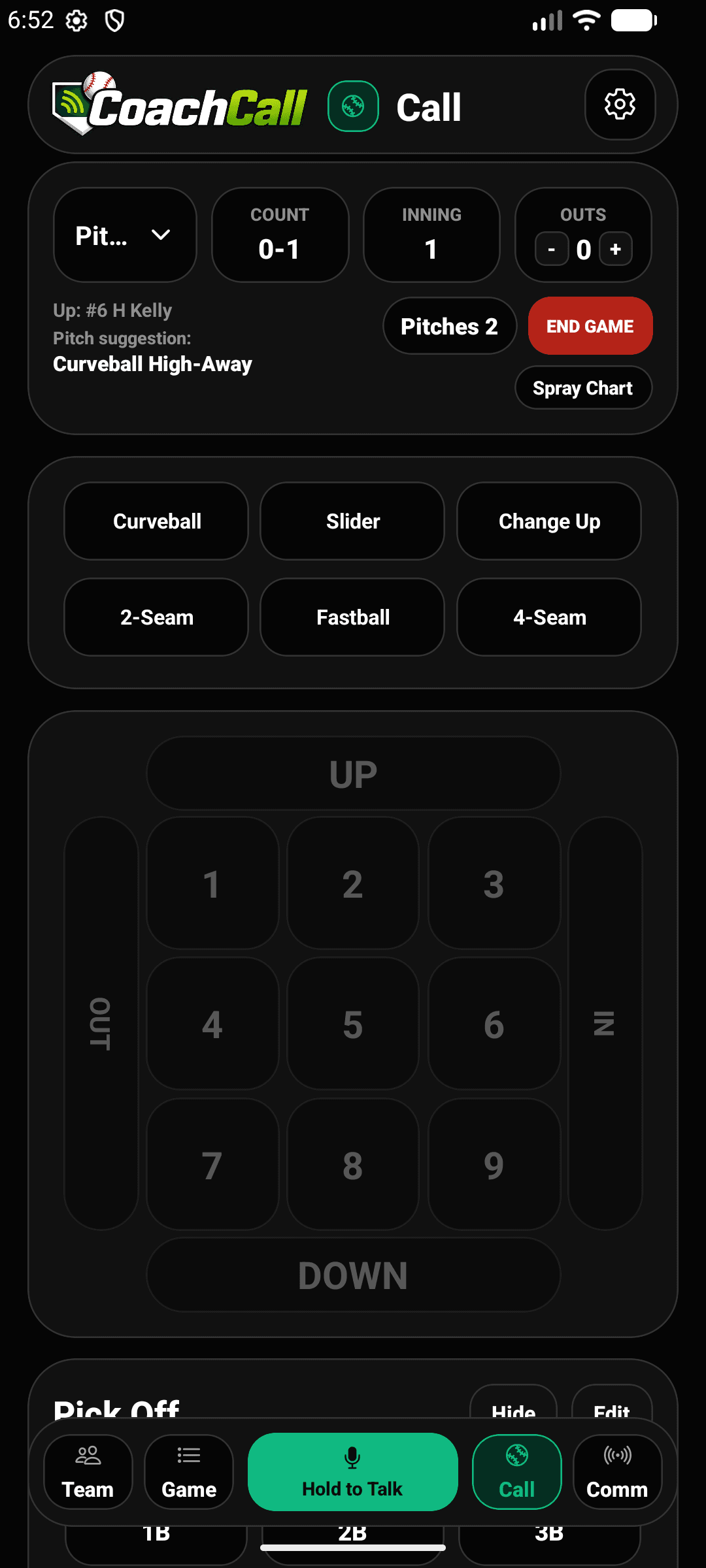
    Make calls from the call screen

    The coach makes the call in the app. The catcher can listen by connected Bluetooth audio. Start simple, use the earbuds/airpods you already own.

If you want setup ideas, see the hardware guide or the Bluetooth audio for catchers guide.

CHECK YOUR GOVERNING BODY FOR RULES AND REQUIREMENTS.

Pro Setup

Use Comm, Player Mode, and watches together

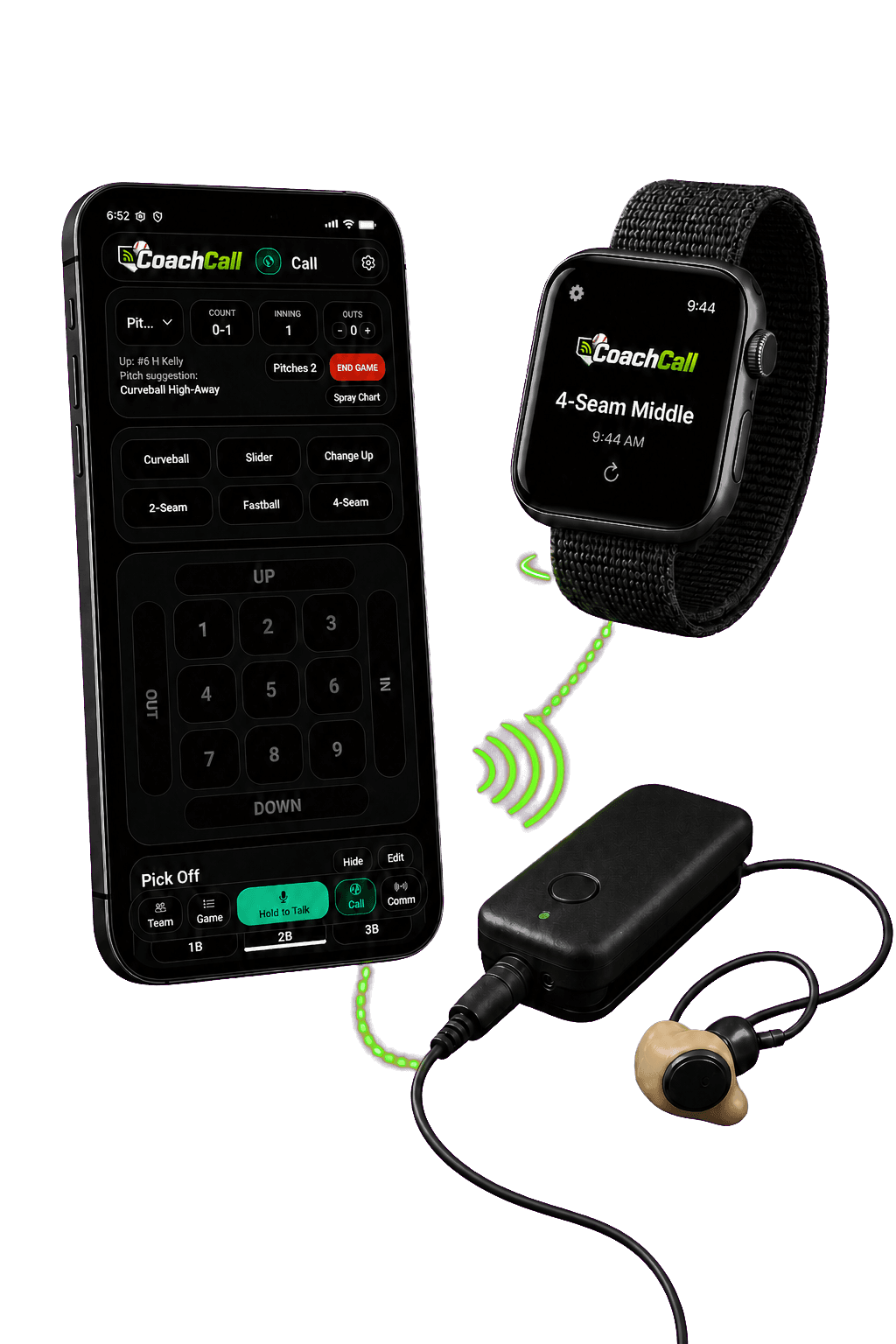
Pro adds connected players, phone delivery, smart watches, push to talk, staff audio, and analytics. The setup takes a little more time, but it gives the coach more control on game day.

  1. 1

    Use Comm to link players

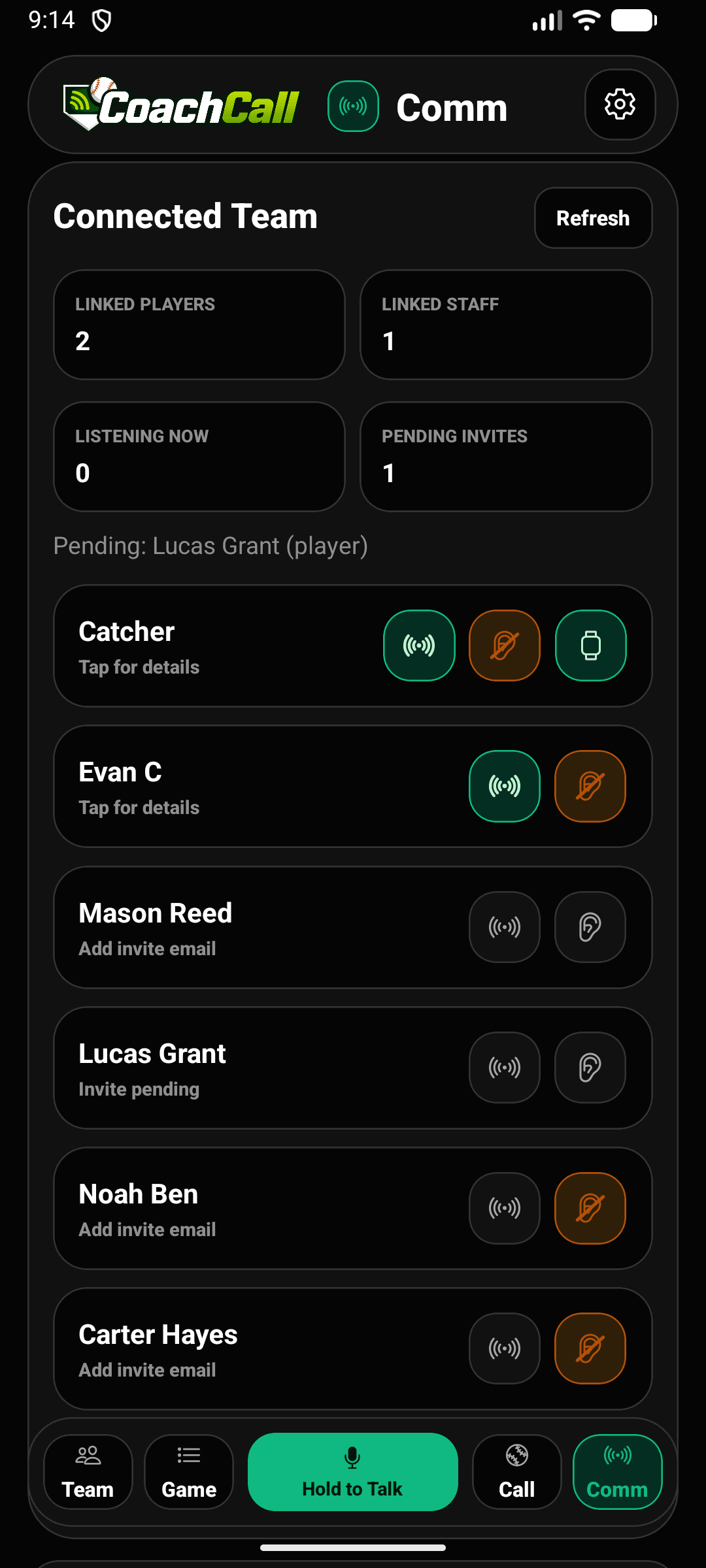
    Pro setup starts in Comm. Link your players, choose who can receive calls, choose who can hear coach audio, and see which players have smart watches connected.

  2. 2

    Use Player Mode for phones and watches

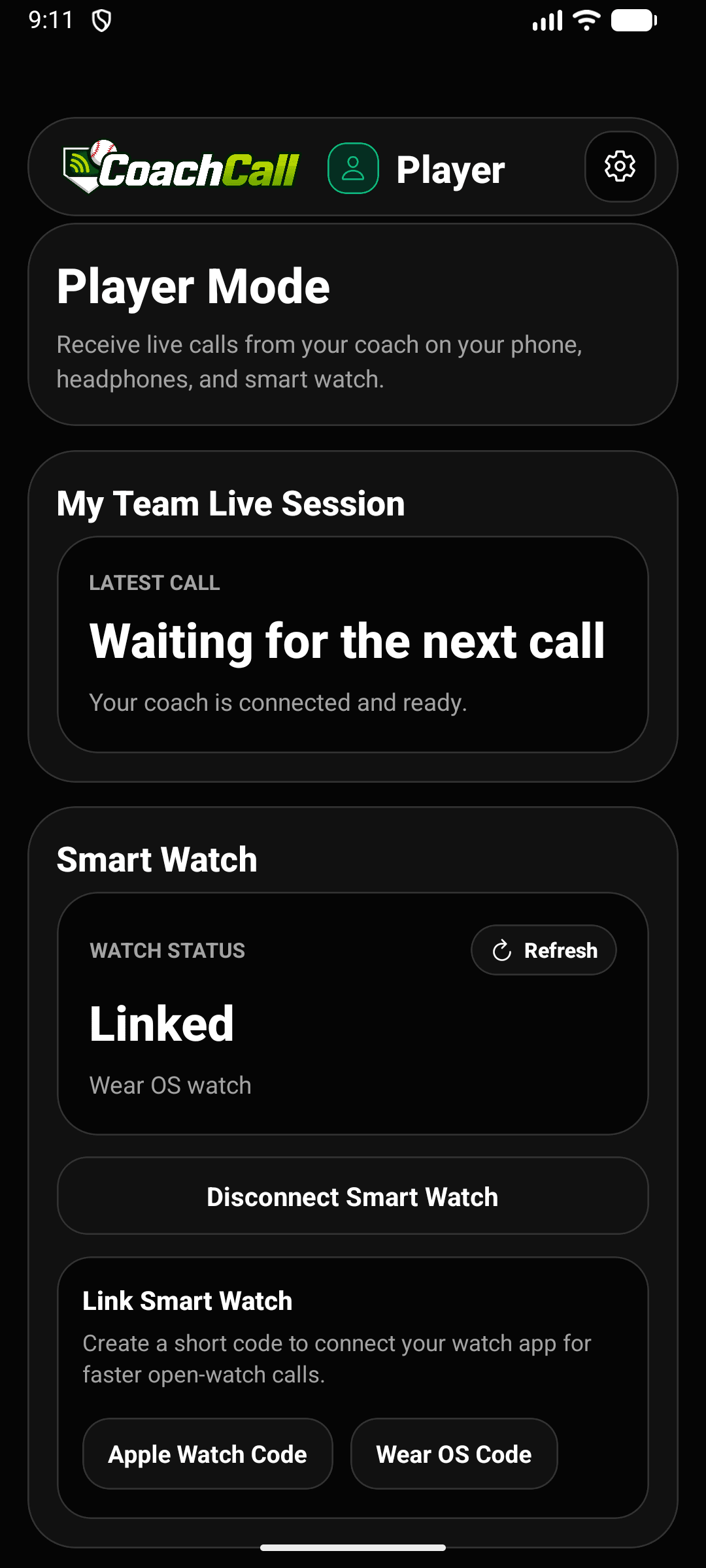
    Players use Player Mode to receive calls on a phone and to create Apple Watch or Wear OS link codes.

  3. 3

    Keep phones nearby when using phone audio

    For phone-to-player audio, Player Mode should stay open while audio is needed. Keep the phone in clear line of sight of the player whenever possible.

  4. 4

    Use watches after setup

    After a watch is linked, it can receive calls without Player Mode staying open on the phone. If a connection feels spotty, keeping Player Mode open nearby can still help.

Bluetooth works best with clear line of sight. Distance drops fast when a phone is buried in a bag, behind a dugout wall, or blocked by people, equipment, and fences. For a broader game-day setup path, read the coach-to-catcher communication guide.

Coach Setup

Build the team before game day

Free coaches only need team, pitcher, and pitch setup. Pro coaches can also use Team and Comm to invite players and staff, manage connected devices, and choose who receives calls.

  1. Sign in, verify the account, and finish Coach Setup.
  2. Set the coach name and team name so players and staff see accurate labels.
  3. Open Team to add players, pitchers, and staff.
  4. Invite players or staff who need their own accounts.
  5. Turn on Receiving for the players who should get live calls.
  6. Open Comm on game day to check who is connected, choose who receives calls, and choose who can hear coach audio.
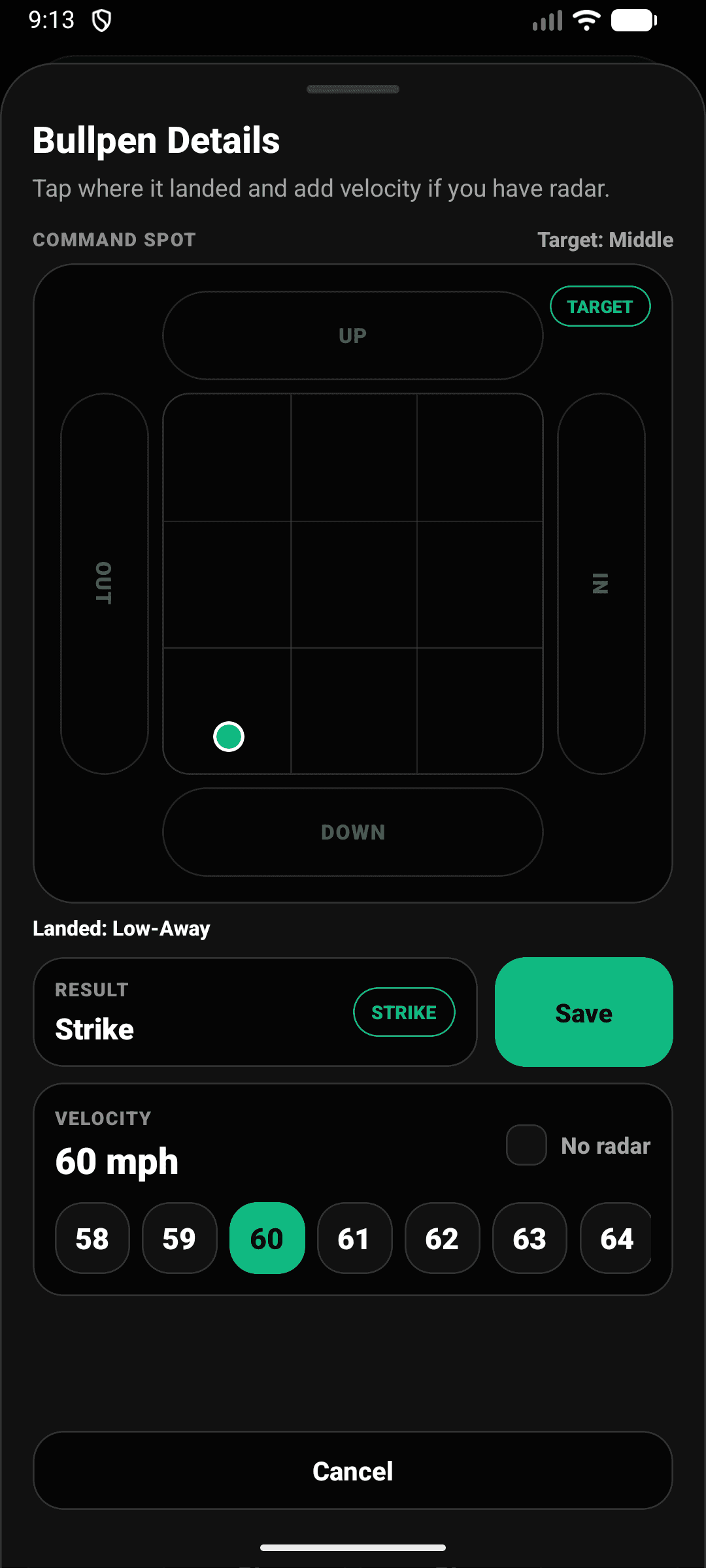
  7. Start a Game when you want result tracking, or use Bullpen when you only need the live count and calls.

Player Setup

Player Mode is the receiving screen

Player Mode is mainly for Pro teams. It receives calls on a phone, helps with audio when Bluetooth range is the problem, and creates the codes used to link smart watches.

  1. Accept the team invite with the player account email.
  2. Open Player Mode during games for the fastest phone updates.
  3. Keep notifications allowed so calls can still arrive when the app is not open.
  4. Use Voice On if the player wants pitch calls read through the phone or headset.
  5. Use Hear Coach only when the coach has enabled Coach Voice for that team.
  6. Create an Apple Watch Code or Wear OS Code from Player Mode before linking a watch.

Watches

Apple Watch and Wear OS link from Player Mode

Smart watches are part of the Pro setup. Use Player Mode to create a short watch link code. Enter that code on the watch so it knows which player and team to follow.

Apple Watches and Wear OS Watches

After linking, keep the watch app open to receive calls quickly. If notifications are turned on, the call will continue without the app open but will be delayed.

Best expectation

LTE-capable watches are the strongest option for distance. For non-LTE watches, clear line of sight and keeping Player Mode open nearby can help if updates feel inconsistent.

For the shorter watch-focused version, read Smart watch setup for baseball.

Live Audio

Use voice only where it helps

Free teams can use simple catcher audio. Pro teams can also use Coach Voice for selected players and staff audio for coaches.

Coach Voice

One-way coach-to-player audio

Coach Voice lets selected players hear the coach live through the phone or headset. Players turn on Hear Coach from Player Mode, and the coach controls who can hear audio from Comm.

Players listen only. They do not talk back through Coach Voice.

Staff Audio

Two-way push-to-talk for staff

Staff Mode is for coach-to-coach audio. Assistant coaches accept a staff invite, open Staff Mode, join the staff lane, then hold to talk and release to mute.

Staff audio disconnects after 20 minutes with no audio activity.

For catcher audio specifically, see Bluetooth audio for catchers.

Game Day

Choose Game or Bullpen

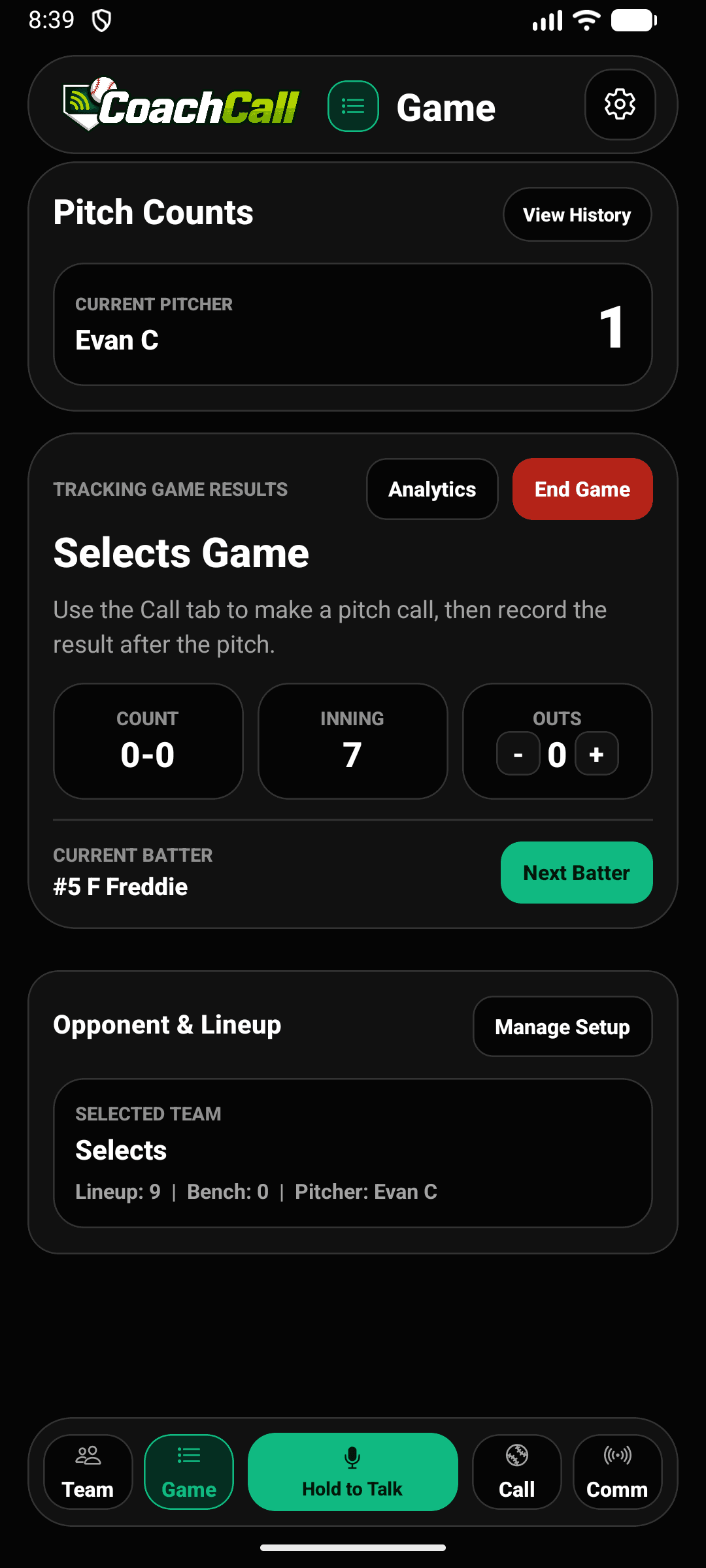
Start a Game when you want result tracking and analytics. Setup the opposing team and batting lineup. CoachCall will learn from data you have gathered over time, helping you to make better decisions in real time. Use Bullpen when you only need balls, strikes.

Before the first pitch

  • Confirm the active team and pitcher.
  • Pick or create the opponent and batting lineup when tracking results.
  • For Pro, check Comm to see who is linked, who can receive calls, who can hear audio, and which players have watches connected.
  • Send a test call before relying on a watch or headset.

Analytics

Use the filters first, then read the cards

Analytics can show a lot at once. Filter by pitcher, opponent, or a specific game first, then use the cards to find the story.

Snapshot

Start with the filtered overview: total pitches, strike percentage, strikeouts, walks, average allowed, hit batters, outs on contact, and ball percentage.

Pitching and zones

Use Pitching to understand pitch mix and results. Use Zones for a quick read on the best and riskiest zones.

Hitters and spray chart

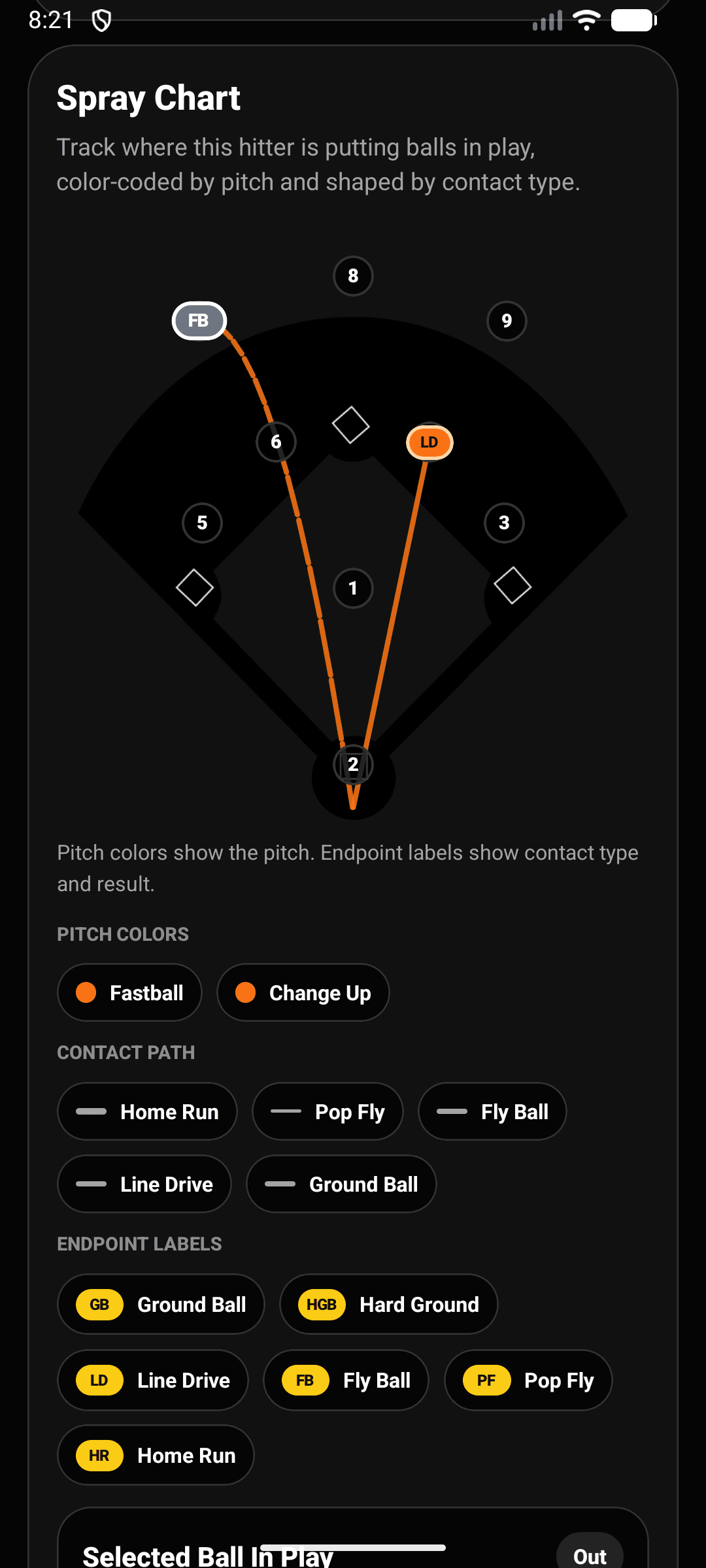
Hitter views show how batters performed by pitch and zone. Spray charts help show where balls in play are going.

Video Guides

Video walkthroughs are coming soon

Short walkthrough videos will be added here over time. Until then, these cards point you to the written sections above.

  1. Video coming soon

    Free setup walkthrough

    Set your team name, add pitchers, choose their pitches, and make calls from the call screen.

  2. Video coming soon

    Pro setup walkthrough

    Link players in Comm, choose who receives calls, and set up Player Mode for phones and watches.

  3. Video coming soon

    Audio and distance setup

    Use Bluetooth where it works best, and use Player Mode when phones or watches need to help with distance.

  4. Video coming soon

    Reading analytics

    Find the most useful takeaways in the snapshot, pitching views, zone boards, hitter heat maps, and spray charts.

Troubleshooting

Start with the common fixes

Most setup problems come down to invite status, receiving settings, notifications, watch linking, or live audio access.

A player is not receiving calls

Check that the player accepted the invite, is still on the team, has Receiving turned on, and is in Player Mode or has notifications enabled.

A watch will not link

Create a fresh watch code in Player Mode and enter the full 6-digit code on the watch. If the watch asks to relink, disconnect and create a new code.

Watch updates feel delayed

Keep the watch app open for the fastest updates. Watch notifications can still work when the app is not open, but they may feel a little slower.

Coach Voice will not connect

Confirm the player has Hear Coach turned on, the coach has enabled Coach Voice for that player, and the coach account has live audio access.

Staff audio disconnects

Staff audio is designed to disconnect after 20 minutes with no audio activity. Rejoin when staff needs to talk again.

Still stuck?

Send support the exact screen and role.

Tell us whether you are in Coach, Player, or Staff Mode, what screen you are on, and what the app says. Screenshots help a lot.

Contact support

CoachCall Baseball

BetaHow-ToHardwareSupport

Legal

PrivacyTermsAccount deletion

Resources

Baseball pitch calling appCoach-to-catcher communicationSmart watch setup for baseballBluetooth audio for catchers

Follow CoachCall Baseball

FacebookInstagramTikTokYouTube

© 2026 CoachCall Baseball LLC.

CoachCall Baseball™ is a trademark of CoachCall Baseball LLC.